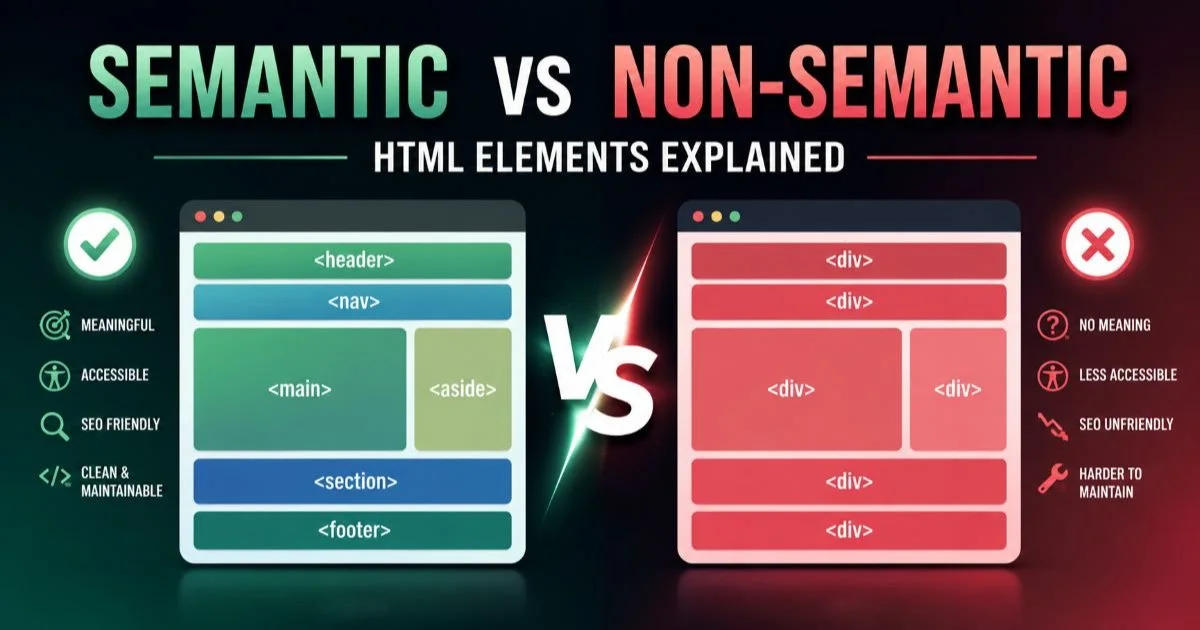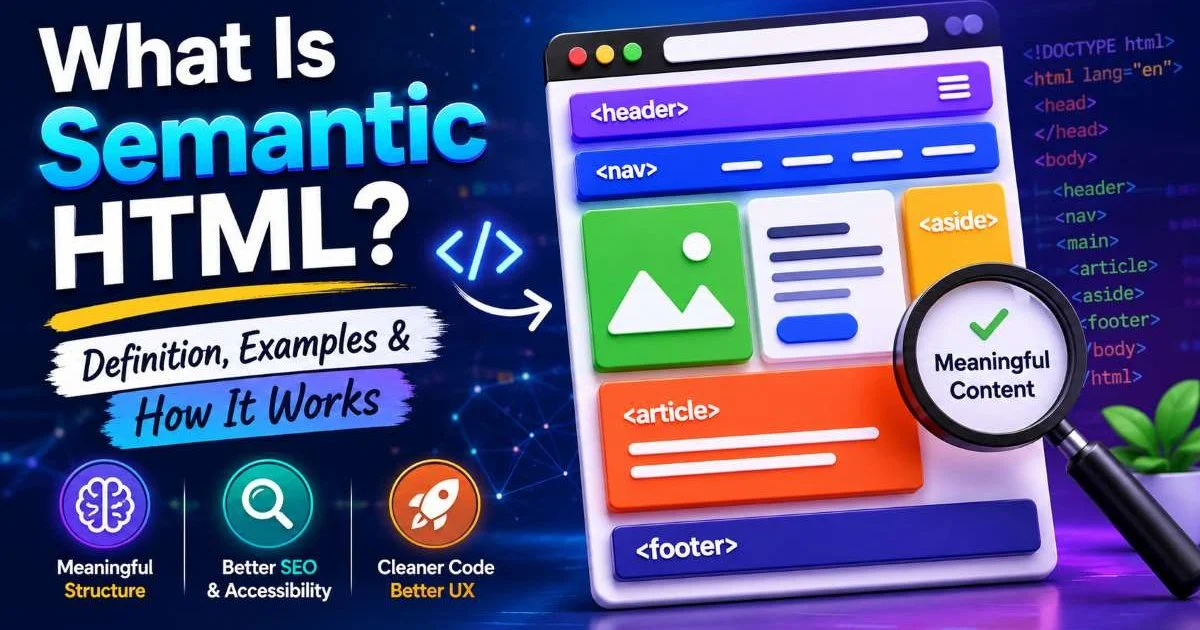
Semantic HTML is the practice of using HTML elements that convey meaning about the structure and purpose of content, rather than relying on generic containers like <div> and <span> for everything. For frontend developers, this distinction shapes how browsers, assistive technologies, and search engines interpret your pages.
A well-structured document built with semantic HTML communicates intent at every level, from the broadest page regions down to individual paragraphs and lists. When you write markup that describes what content is rather than how it looks, you build a foundation that supports accessibility, maintainability, and SEO simultaneously.
The cost of ignoring this is real: screen readers struggle, automated tools flag errors, and your colleagues inherit code that reads like alphabet soup. This article breaks down what semantic markup actually means in practice, how it works under the hood, and why it should be your default approach to writing HTML.
Key Takeaways
- Semantic elements describe content purpose, making pages understandable without visual rendering.
- HTML landmarks like
<nav>,<main>, and<aside>create navigable regions for assistive tech. - A correct heading hierarchy lets users and crawlers quickly scan document structure.
- Replacing generic
<div>wrappers with meaningful tags reduces your need for ARIA attributes. - Accessible markup benefits all users, not only those relying on screen readers.
How Semantic HTML Works
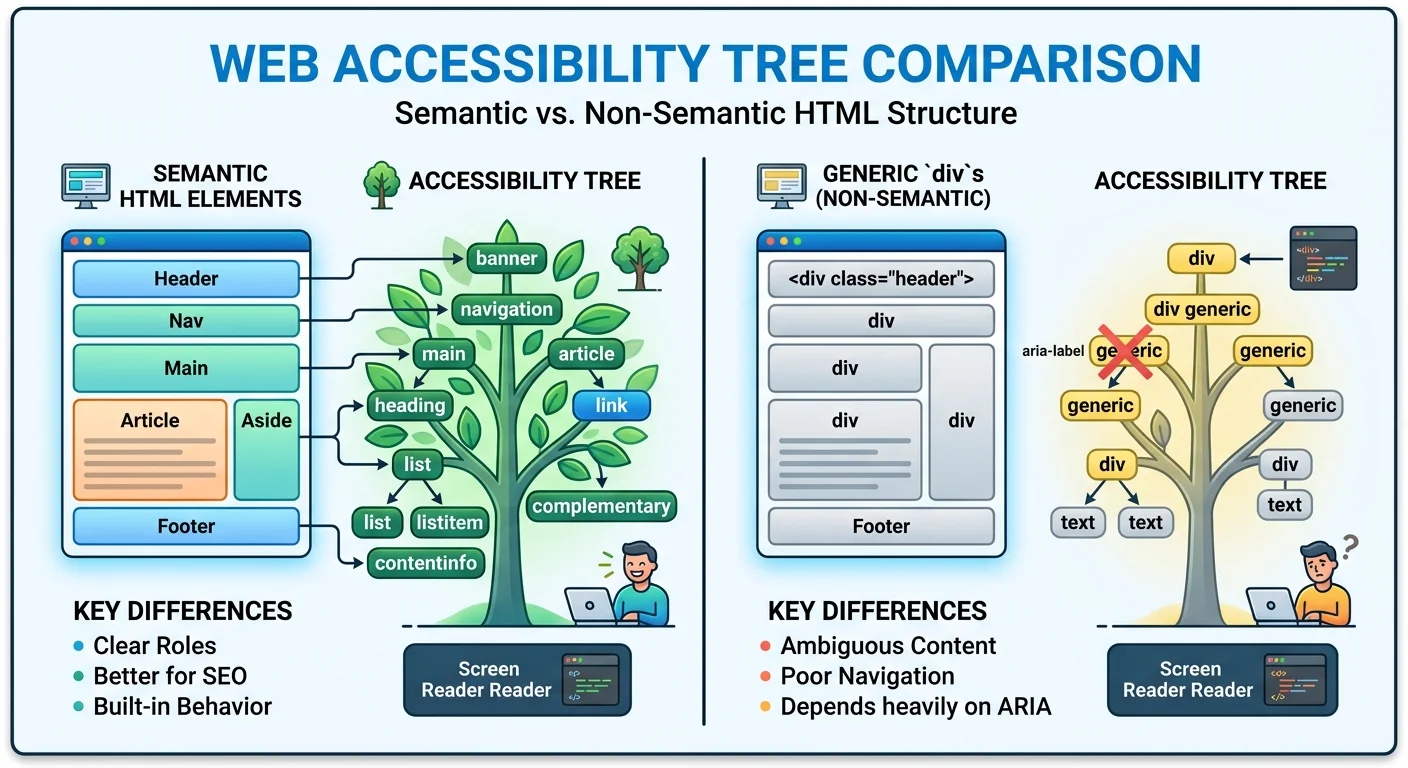
Every HTML element carries an implicit meaning. When a browser encounters <article>, it understands that the enclosed content is a self-contained composition. When it sees <nav>, it registers a navigation region. These meanings are codified in the HTML specification and directly mapped to accessibility roles that assistive technologies consume. This is fundamentally different from a <div className="nav">, which carries zero semantic weight despite looking identical on screen.
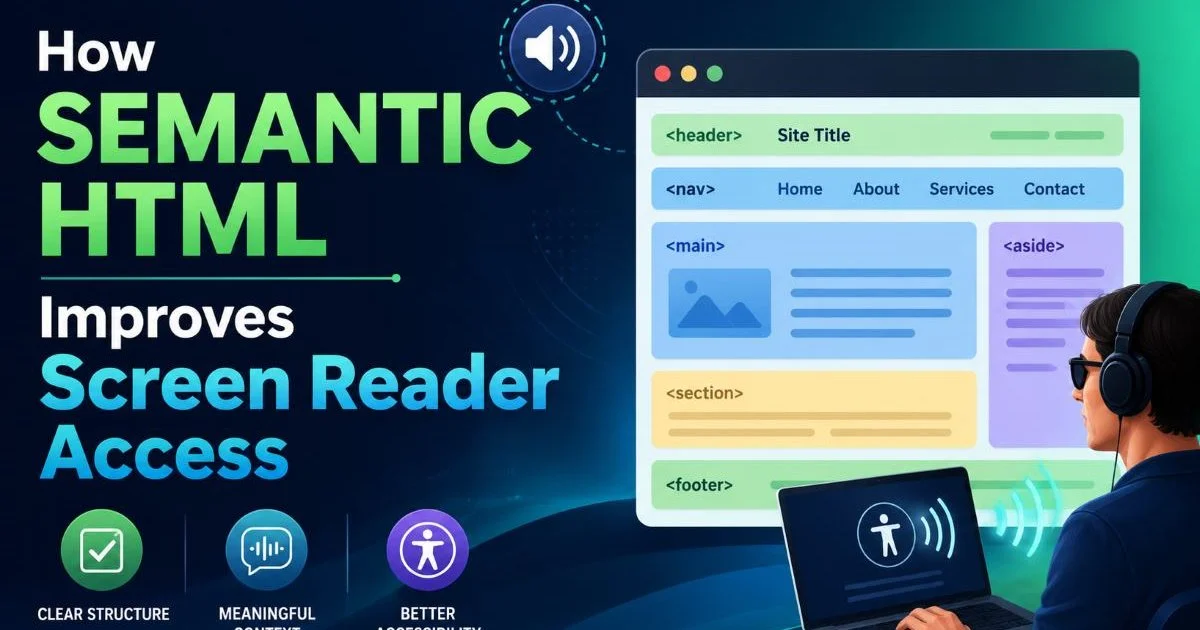
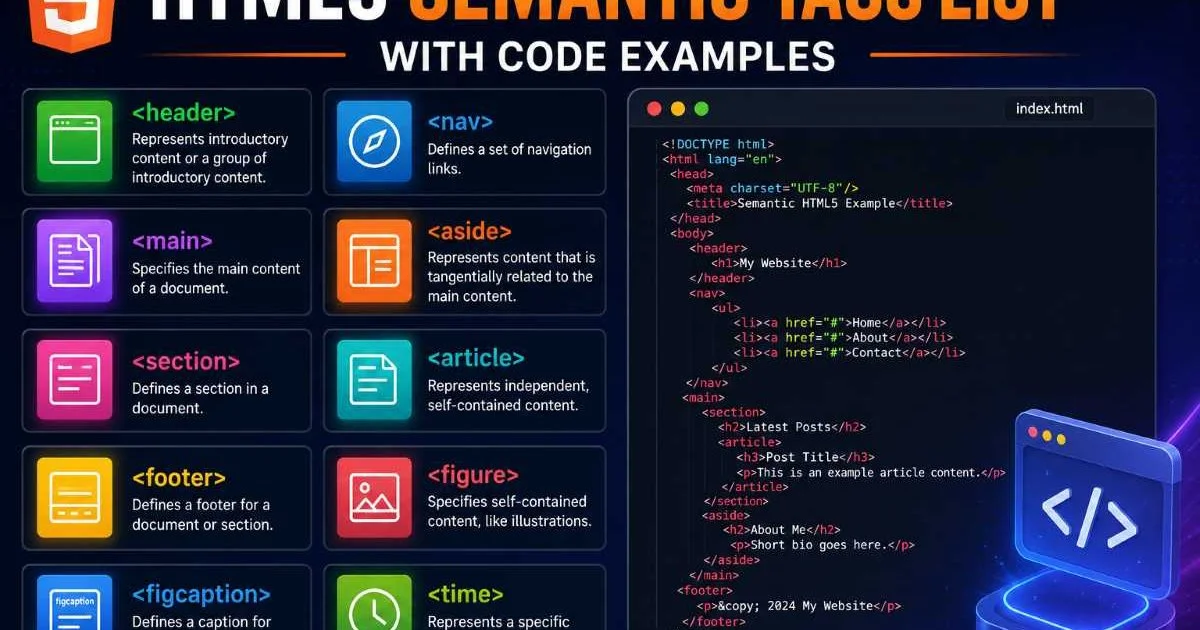
HTML5 introduced a rich set of html5 semantic elements specifically designed to describe page structure. Elements like <header>, <footer>, <main>, <section>, and <aside> act as html landmarks, dividing the page into meaningful regions. Screen readers use these landmarks to let users jump between sections without tabbing through every link and paragraph. A page with proper landmarks might have five to seven navigable regions; a page built entirely from divs has none.
Implicit Roles and the Accessibility Tree
Browsers parse your HTML and generate an accessibility tree alongside the DOM. This tree is what screen readers like NVDA, JAWS, and VoiceOver actually read. Each semantic element maps to an ARIA role automatically: <nav> becomes role="navigation", <main> becomes role="main", and <button> becomes role="button" with built-in keyboard handling. When you use a <div> instead, the accessibility tree shows a generic container with no role, no label, and no inherent behavior.
Open Chrome DevTools, navigate to the Accessibility tab, and inspect your page's accessibility tree to see exactly how your markup translates.
Heading Hierarchy in Practice
A logical heading hierarchy starts with a single <h1> per page and descends through <h2> to <h6> without skipping levels. This creates an outline that both users and search engine crawlers can follow. Screen reader users frequently navigate by heading level; a study from WebAIM found that 67.5% of screen reader users navigate by headings as their primary method for finding content. Skipping from <h2> to <h4> breaks that expectation and creates confusion.
Why It Matters for Real Projects
Accessibility and Assistive Tech
Page structure accessibility is not an abstract ideal. In many jurisdictions, websites must comply with WCAG 2.1 or face legal consequences. Semantic markup directly supports WCAG success criteria 1.3.1 (Info and Relationships), which requires that information conveyed through presentation be programmatically determinable. Using the right elements is the simplest path to compliance. Tracy Lum has written an excellent breakdown of the benefits of semantic HTML that illustrates how small markup changes create outsized accessibility gains.
Beyond compliance, accessible markup makes your site usable for the roughly one billion people worldwide living with some form of disability. Screen readers, braille displays, and voice control software all depend on accurate semantic information. When a user asks their screen reader to list all the links on a page or jump to the main content, your HTML is the interface. If your <a> tags wrap empty divs, or your main content lives inside an unsemantic wrapper, these tools fail silently. If you're unsure where your site stands, tools that help you find and fix website accessibility issues can surface problems quickly.
SEO and Maintainability
Search engines use semantic signals to understand page content. Google's crawlers parse landmark regions, headings, and structured elements to build a model of what your page is about. A clean heading hierarchy signals topic organization. Proper use of <article> and <section> helps crawlers identify primary content versus supplementary material. None of this replaces good content, but it removes friction between your content and the algorithms evaluating it.
From a maintenance perspective, semantic code is self-documenting. A developer scanning a template immediately understands the role of <aside> in a way that <div className="sidebar-wrapper-v2"> never communicates. This reduces onboarding time, lowers the chance of regressions during refactors, and makes code reviews faster. The long-term velocity gains are substantial, especially on larger teams where multiple developers touch the same templates.
"Semantic code is self-documenting. A developer scanning a template immediately understands the role of each element."
Common Misconceptions
Div Is Not the Enemy
One of the most persistent myths is that using <div> is inherently wrong. It is not. The <div> element is a legitimate, spec-compliant grouping element for situations where no semantic element fits. Layout wrappers, grid containers, and styling hooks are all valid uses. The problem arises when developers use divs instead of semantic elements, not when they use divs alongside them. A page can have fifty divs and still be perfectly semantic, as long as the meaningful content is wrapped in appropriate elements.
Do not wrap every element in a semantic tag just to avoid divs. Use semantic elements where they add meaning; use divs for presentational grouping.
Semantic Does Not Mean Pretty
Another misconception is that semantic HTML produces better-looking pages. It does not, at least not by itself. Semantic elements carry no default styling beyond minimal browser defaults. An <article> looks the same as a <div> until CSS is applied. The value is structural, not visual. Developers sometimes resist semantic elements because they expect a visual payoff; when none appears, they revert to divs. The payoff is in the accessibility tree, in the crawler's understanding, and in the next developer's ability to read your code.
There is also a belief that semantic HTML is only relevant for content-heavy sites like blogs or news platforms. In reality, web applications benefit just as much. A dashboard with <nav> for its sidebar, <main> for its primary panel, and properly labeled <form> elements is far more navigable than one built entirely with divs and spans. Even data-heavy interfaces benefit; if you are generating complex tables, tools like a best HTML table generator can help produce well-structured, accessible table markup.
Semantic HTML vs. ARIA
When ARIA Is Appropriate
ARIA (Accessible Rich Internet Applications) attributes exist to fill gaps where HTML semantics fall short. Custom widgets, dynamic content regions, and complex interactive patterns often need ARIA roles, states, and properties. However, the first rule of ARIA, as stated in the W3C specification, is: "If you can use a native HTML element with the semantics and behavior you require, do so." ARIA should supplement semantic HTML, not replace it. Overusing ARIA creates maintenance overhead and can actually worsen accessibility when applied incorrectly.
A common anti-pattern is <div role="button" tabIndex="0" onClick={() => { ... }}>. This requires the developer to manually implement keyboard handling, focus management, and form submission behavior. The native <button> element provides all of this for free. Every unnecessary ARIA role is a potential point of failure. Native elements are tested across browsers and assistive technologies; custom ARIA implementations often are not.
Adding role="button" to a div does not give it keyboard support. You must also handle Enter and Space key events manually, which native buttons do automatically.
Mapping Elements to Roles
Understanding which HTML elements map to which ARIA roles helps you choose the right element for every situation. The table below shows common elements, their implicit roles, and whether adding an explicit ARIA role is necessary. In nearly every case, the native element is sufficient.
| HTML Element | Implicit ARIA Role | Explicit Role Needed? | Notes |
|---|---|---|---|
<nav> | navigation | No | Label with aria-label if multiple navs exist |
<main> | main | No | Only one per page |
<aside> | complementary | No | Tangentially related content |
<header> | banner (when top-level) | No | Nested headers lose the banner role |
<footer> | contentinfo (when top-level) | No | Nested footers lose the contentinfo role |
<button> | button | No | Includes keyboard and focus behavior |
<div> | none | Only if used as a widget | Prefer native elements over div+role |
The pattern is clear: native elements give you more for less effort. When building components in frameworks like React, Vue, or Svelte, it is tempting to create a custom <Box> or <Container> component that renders a div by default. Consider making the rendered element configurable via an as prop so that developers can specify <section>, <article>, or <aside> when the context calls for it. This small API decision preserves semantics across your entire component library.
Frequently Asked Questions
?How do I check if my page has proper HTML landmarks?
?When should I use ARIA instead of semantic HTML elements?
?Does refactoring divs to semantic HTML break existing CSS styles?
?Is skipping heading levels really that damaging to a real site?
Final Thoughts
Semantic HTML is not a trend or a best practice you can defer to a future sprint. It is the foundation of a web that works for everyone, from screen reader users to search engine crawlers to the developer who inherits your codebase next quarter. The elements exist in the spec.
They are free, well-supported, and require no additional libraries. Start by auditing your most-visited templates: replace generic containers with landmark elements, fix your heading hierarchy, and remove redundant ARIA roles. The result will be markup that is cleaner, more accessible, and easier to maintain.
Disclaimer: Portions of this content may have been generated using AI tools to enhance clarity and brevity. While reviewed by a human, independent verification is encouraged.